Aim: Is to record Audio using LINE and submit your 10 second final summary
Method: Please do the following tasks
PowerPoint: Please make a new PowerPoint and copy your Summary Slide.
Steps:
The name of your slide is audio_summary
Change your slide format from horizontal (landscape) to vertical (portrait) – click on design – go to design size and change the setting, click on E (to change the slide format and size)
Add a picture from your original slideshow –
Example: In academic situations you sometimes need to use vertical format, for example posters, as well for printing in official documents or magazines or books
LINE audio; create a LINE group called wedp2g#; invite the teacher to the group; record the audio using the LINE audio function (start/stop). listen to your audio, if you want to delete it and record again – multiple attempts is okay!
At home record your audio and upload your slide as a pdf
Deadline is Friday 9pm please:)
image click on the microphone and talk and when you finish unclick and then your file is uploaded automatically.
Summary Slide: There are many types of Summary formats. For example; You can ask your audience are question (?); To give your final opinion (the last thing you want your audience to think about)
In addition American or Western style like to use a “Final Statement”. A sentence that has a final impact on the audience! Impact: is a way to ask the audience to think more deeply about the topic!
For example: Australian Culture:
“You have to see it to believe it but Australia is one of the most beautiful countries with amazing culture throughout the world“.
Aim: Present your Speech “Animation” PowerPoint in ZOOM today in class. Follow these steps;
*Notice: we can not record in class today. Because the web cameras and headphones were removed from the cyber studio. Class with the teacher will be 1 hour, the other time – please record at home and upload by 9pm tonight (Thursday lunchtime – latest)
check your web camera and headset on the PC
open your PowerPoint on your PC
log into ZOOM and start your own meeting – schedule a meeting, and click save
start meeting – launch meeting a) download zoom and use the PC app, or b) use the internet browser (chrome). You should see a black box / screen.
left button at the bottom you can connect to audio and video – test
share screen with your PC. Check the green button, and select your PC screen to see in Zoom. The dashboard goes to the top of the PC screen (hiding), mouse over the top to see your dashboard. Red button to stop share
show your TV screen in the top left or top right
click record to start and click stop to end
end the meeting, and you can download the zoom recording
save the MP4 file on your computer; ZOOM folder
upload to the Gandai portal
Objective: To record your speech in ZOOM, and save your recording, and upload MP4 into the Gandai Portal
Hello everyone! Nice to meet you. I am Simon Townsend, please call me Simon. I am from Australia, and I am a Math High School teacher, and now computer engineer – I teach STEM: Science – Technology – Engineering – Maths: my favorite class is teaching kids how to make robots. In my free time I like to go hiking, and also in winter I like to go to onsens. I like cooking – but I am not very good. My best dishes are pasta & pizza. I can also cook Japanese pizza. Lets enjoy English study and get to know each other:)
S.
Activity: The aim today is to make a self-introduction and save on your system hard-drive (PC-M drive), and if you have a USB – back up
Method: Open a word document and follow the outline below
Outline: Follow these steps. The teacher will demonstrate to the class.
Aim: Produce a ZOOM recording of a PowerPoint slide presentation
PowerPoint Objective: Create your own theme about Food & Nutrition and prepare a short presentation. Your slides only need your text to read your script, no images/photos is needed. Follow the format below:
Slide 1: Read your title – 5 seconds
Slide 2: Read your Main Point 1 – 20 seconds
Slide 3: Read your Main Point 2 – 20 seconds
Slide4: Read your Final opinion and conclusion – 15 seconds
ZOOM Objective: Record yourself present on PC:
open your PowerPoint on your PC
log in to zoom and start your own meeting
share screen with your PC
show your TV screen in the top left or top right
click record to start and end
save the MP4 file on your computer; ZOOM folder
upload to the Gandai system
Speaking Objective: When you read a script for example there are two main things to think about
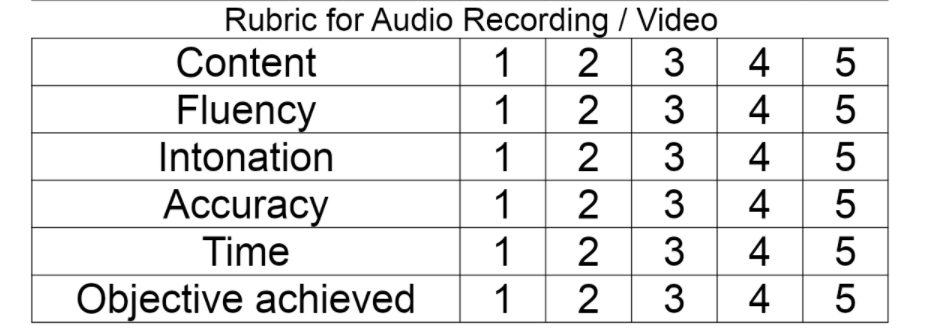
Fluency – this is the pace of your reading, also it means when you pause, speed up, slow down….
Stress (intonation) – this is the highlight of “KEY” words.