Aim: To learn how to use a digital (online) discourse application “Cathoven” to get feedback on your English use of words and sentences.
1.How to make a FREE account?
Steps: Please make an account. On the free version, you can only use 6 times a day (24 hours). Click on the link
1.At the bottom of the menu (left side) click on “Log in”.

2.Next, click on “Create a free account” at the bottom.

3.Next, click on “Register with Google”.

4. Then, type in your Gmail account and password.


5.There is a survey, and there are two questions. Answer 1 = University/College, and Answer 2 = Student
2.How to use?
1.First, on the left menu click on the 2nd button – “Text Analyzer” (under Home).

2.Next, on the first tab click on the 2nd “CEFR” button.

3.Next, Copy & Paste your text (word document) into the text box area. For example:

4.Then, click on the “Analyze” button, on the right side (at the top). You can see your color coded text, for example:

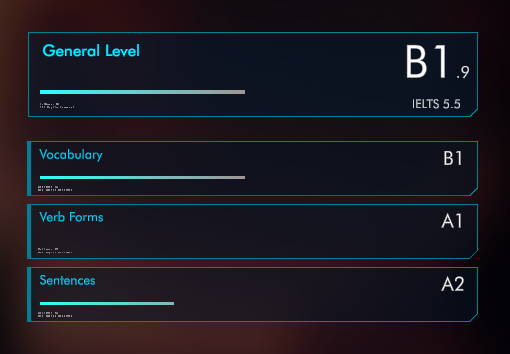
5. On the right side of your screen you can see a summary of your CEFR text feedback, for example:
3.How to use your CEFR feedback?
- write a section of text and check the overall score
- on the free version, you can only use 6 times a day (24 hours)
- you can improve vocabulary by checking the level of difficulty
- you can edit and improve your sentence structure
- you do not need to get a high score “result” every time. Please use as a guide to help you use high level words (topic terminology) and complex sentences
- any stage of your writing you can use this discourse analyzer