left side: copy your text from your document -> the text box
right side click on the arrow and then click on the 2nd link (CEFR)
click on the button “Analyse” for your discourse feedback
Take a photo with your smartphone and send to LINE group
Discourse Feedback Explanation. How to read?
left-side: your vocabulary is color coded to show you the level of difficulty of your content or specialized vocabulary (terminology) – A1 to Native
right-side: will report your overall level, and then a) Vocabulary; b) Verb Forms; c) Sentence Structures
Discourse Feedback Explanation. How to use?
write a section of text and check the overall score
you can improve vocabulary by checking the level of difficulty
you can edit and improve your sentence structure
you do not need to get a high score “result” every time. Please use as a guide to help you use high level words (topic terminology) and complex sentences
any stage of your writing you can use this discourse analyzer
You need: a smartphone; YouTube app on your phone; YouTube account or another account you can log in with, for example GMail; smartphone access from your Photo app to YouTube app.
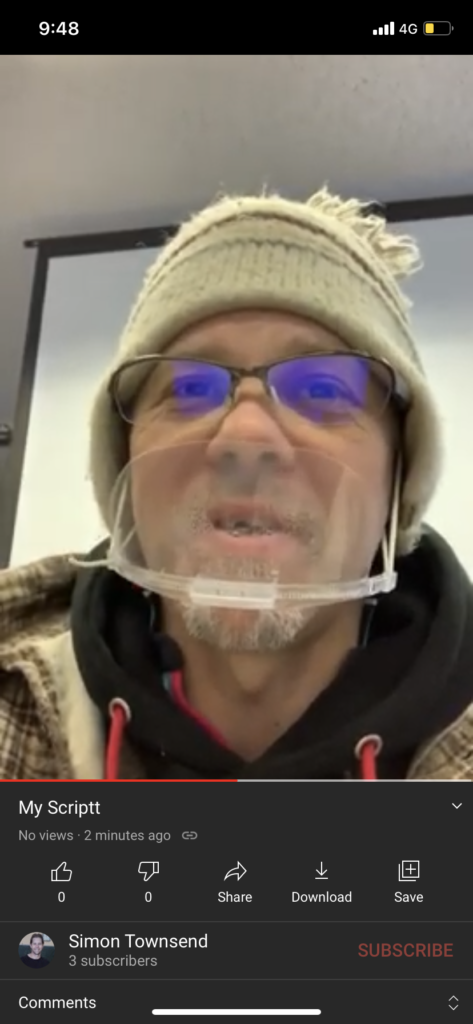
Speaking Script: On your smartphone, take a video face shot of yourself and read the script and record to upload to YouTube. Follow these steps:
Part A – Upload YouTube URL & PDF (PowerPoint) Due: 27th 14:00pmVideo Title: MyScriptAdvanced; PDF Title: MyScriptAdvanced
Slide 1: copy and paste the script into a PowerPoint File called MyScriptAdvanced, and complete; a) your full-name (in English) and age; b) University name / year / course name (in English); and c) possible future job (perhaps).
Slide 2: copy and paste the script into a PowerPoint File called MyScriptAdvanced, and a) explain why did you entered this course!
Slide 3: copy and paste the script into a PowerPoint File called MyScriptAdvanced, and a) explain why you want to do a future job!
Slide 4: copy and paste the script into a PowerPoint File called MyScriptAdvanced, and a) explain other interests you have!
Slide 5: copy and paste the script into a PowerPoint File called MyScriptAdvanced, and a) explain where you want to live!
Part B – Upload YouTube URL & PDF (PowerPoint) Due: by February 3rd 14:00pm. Video Title: MyScriptAdvanced2; PDF Title: MyScriptAdvanced2
Objectives: research the internet related to your future job/career. Find and select a problem connected to it (job/career). Research the problem to identify; and present solutions to solve this problem. Recognize the advantages and disadvantages. Follow and complete the slides below 6; 7; 8; 9; and 10. Submit your YouTube URL and PowerPoint (as a PDF file) in Line
Slide 6: copy and paste the script into a PowerPoint File called MyScriptAdvanced2, and complete; a) complete the Title of your Problem; b) include a picture and a picture description.
Slide 7: copy and paste the script into a PowerPoint File called MyScriptAdvanced2, and complete; a) complete the Explanation of Solution 1; b) include a picture and a picture description.
Slide 8: copy and paste the script into a PowerPoint File called MyScriptAdvanced2, and complete; a) complete the Explanation of Solution 2; b) include a picture and a picture description.
Slide 9: copy and paste the script into a PowerPoint File called MyScriptAdvanced2, and complete; a) complete one advantage for each solution, and b) complete one disadvantage for each solution.
Slide 10: copy and paste the script into a PowerPoint File called MyScriptAdvanced2, and complete; a) complete your final opinion about the problem and solutions.
You need: a smartphone; YouTube app on your phone; YouTube account or another account you can log in with, for example GMail; smartphone access from your Photo app to YouTube app.
Speaking Script: On your smartphone, take a video face shot of yourself and read the script and record to upload to YouTube. Follow these steps:
Step 1: copy and paste the script into a PowerPoint File called MyScript, and complete; a) full-name; b) age; c) course name (in English); and d) possible future job (perhaps).
Hi. My name is __________ and I am _________ years old. I entered Iwate University in 2020 and I am enrolled in the ___________________ course. In the future I am interested in becoming __________________ .
Step 2: Practice your short script (2or3times) and then record using your smartphone. Hold the phone close to you, center your face-shot, and in front of the script on your PC. And smile:)
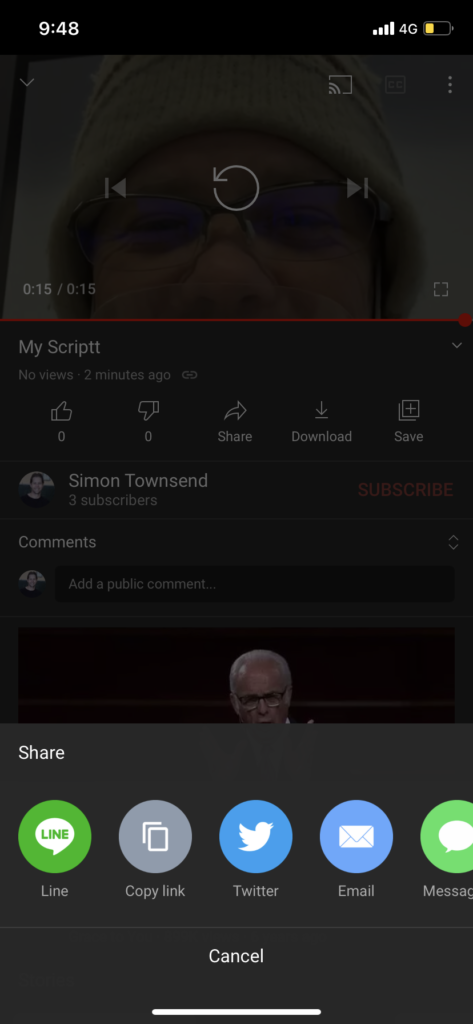
Step 3: On your smartphone, choose your Photo app, and select the video you want to upload, and click share (bottom of the screen):
Or, open the YouTube app, and click on the share / upload / plus button:
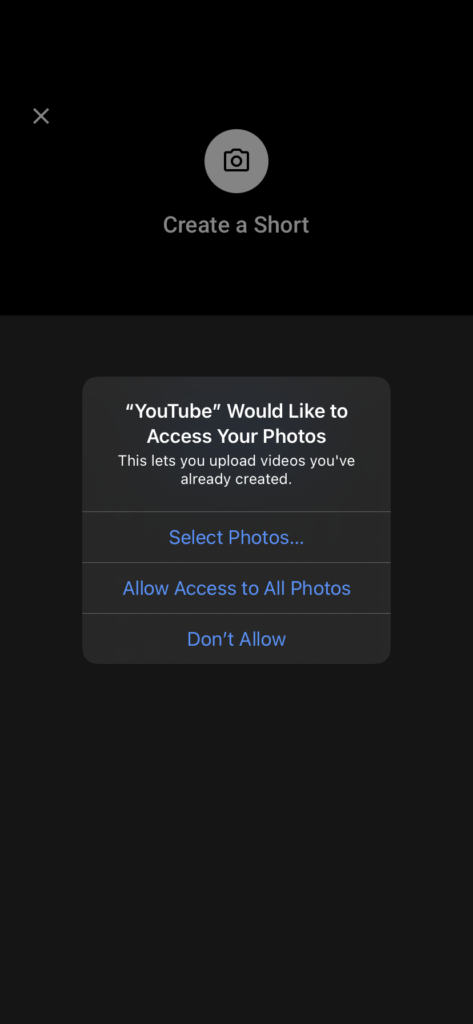
You may have to click on and allow the YouTube app access to your photos and videos:
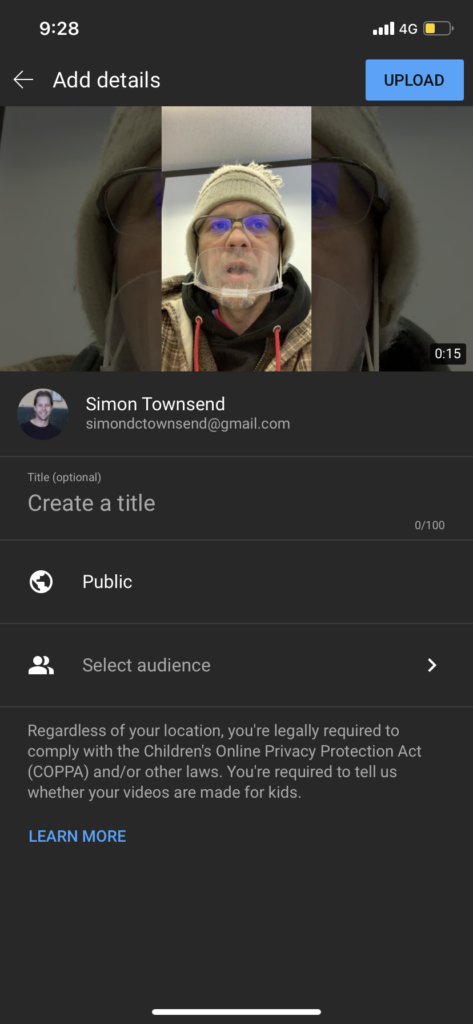
Next, follow the privacy directions and a) in the Create a title write My Script:
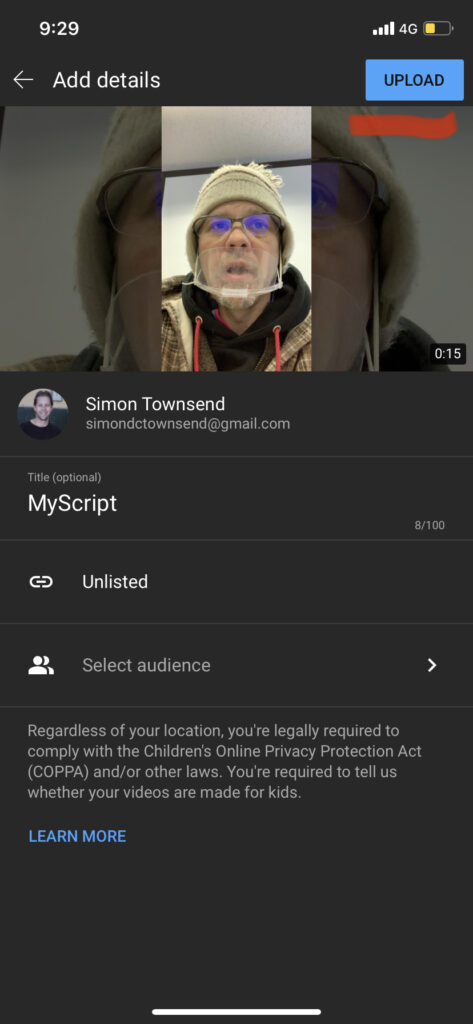
Next, you DO NOT want your video to be Public (to the world lol). So, b) select Unlisted, and your video will be made using a secret URL
Next, click on Upload (the top button)
After a few minutes you will be notified that your video has uploaded (Mine took 2 minutes using 4G).
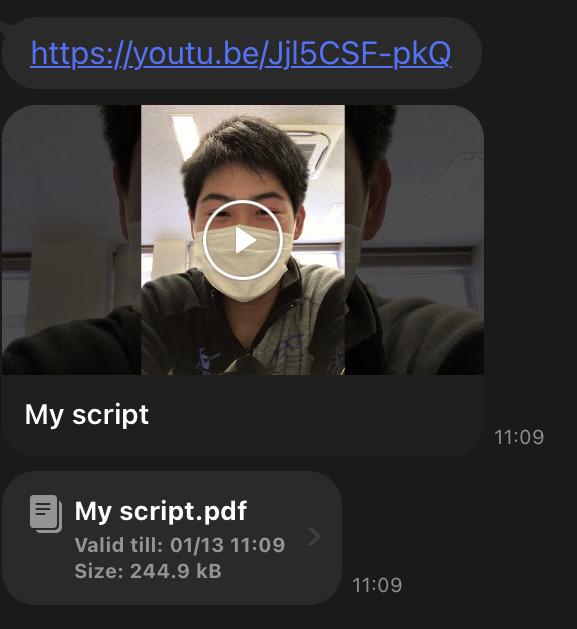
Also you will be able to access the secret URL. Next, Share directly to me in LINE.
Aim: To write your impression, following a report format called Feedback Report
Objective: To express yourself based on video content; your thoughts and ideas.
Video: Where the Hell is Matt?
Submission: Submit the following report, using the below format in a word document. There are 5 parts to this feedback report Save as PDF and LINE. Due: December 18th 9pm
Title: create your own title about the video
Key words: key words a; keywords b; keywords c
Introduction sentence: explain this video (20words or less)