Category: Spring 22
Final Project Confirmation:
I confirm that I have completed and uploaded the following work:
- Week 13 Zoom MP4 file – Gandai Portal
- Week 14 Poster (PDF) – Gandai Portal
Write your details and click send:
- Name in Kanji
- Name in English
- Student number
Assessment for Speaking
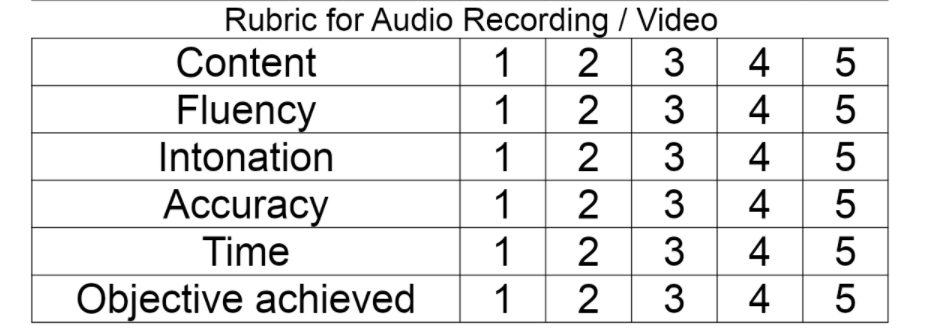
Objective: score card
Please Note *Slide text and speech should connect / link

Zoom MP4 – Instructions
Aim: To record a video presentation using ZOOM. You can set up a free account. Search the internet for ZOOM and sign up.
Procedure: You will need to record using a computer with a camera
- open your PowerPoint on your PC
- log into ZOOM and start your own meeting (1 person)
- share screen (at the bottom – red button) with your PC
- show your TV screen in the top left or top right corner
- click record to start and click to end (see more button)
- stop sharing
- close your meeting – End Meeting
- your recording (file) will start to download automatically
- save the MP4 file on your computer; automatically in your ZOOM folder
- save to USB as backup, and bring to class.
Image:
Student example:
Submission
Deadlines: There are two deadlines
Week 13: July 20th: MP4 recording (you do not need to come to class to record and submit). Due 9am to 9pm
Week 14: July 27th: Deadline – Poster (submit in class), Due 10:30 to 11:30
July 6th
Aim: To make a PowerPoint and convert from a pptx file to a Word file (docx) to make a poster:
Objective: Make a A) PowerPoint to present your topic; key sentences or key words (bullet points), and B) convert this information and “expand” your information into a poster format (6 sections).
Topic: Select a topic based on the following; before you start line me your Title – I will check!
- Select a subject in your course and make your project
- Make a poster about a company you want to work for, in the future
- Or, you can select an “extra curricular program” (volunteer work) and present about it.
Steps: follow these steps;
- research the internet for information
- take notes
- make your PowerPoint and Poster in any order you want to
For example:
- Make your poster first, then select your information (key sentences / key words) and copy to your PowerPoint – section by section
- Make 1 document first (finish) then make the other document (finish)
- Random process of creating content, editing content, and improving your information – for both documents
Poster Requirement: layout design is landscape; text and graphics. It is expected that you can have a lot more information in the poster; follow these tasks;
- to create 6 sections in your poster
- Section 1: Title and slide information (2)
- Section 2: slide information 3
- Section 3: slide information 4
- Section 4: slide information 5
- Section 5: slide information 6
- Section 6: slide information 7 (no thank you!)
PowerPoint: there are 8 slides; each slide has a maximum of (10 words – 12 words); Sentences – or bullet points – and graphics; follow these tasks;
- Title Slide
- Information slide
- Information slide
- Information slide
- Information slide
- Information slide
- Information slide
- Thank you slide
Example:
Zoom Activity
Aim: Present your Speech “Animation” PowerPoint in ZOOM
Objective: To record your speech in ZOOM, and save your recording, and upload MP4 into the Gandai Portal
Speech outline:
- Accuracy
- Content
- Fluency
- Intonation / Stress
- Objective 1: ZOOM recording ability
- Objective 2: TIME
Extended Due Date: May 31st
Speech Screen:
- open your PowerPoint on your PC
- log into ZOOM and start your own meeting
- share screen with your PC
- show your TV screen in the top left or top right
- click record to start and end
- save the MP4 file on your computer; ZOOM folder
- upload to the Gandai portal
Student example:
Week 6
Aim: To expand our research and add information to our master slide
Method: Teacher instruction
Objective: To add more information to the slideshow (master file 1). Follow these steps:
- add more information to slide 6a: cultural aspects
- sentences explaining something – is 1 method
- using pictures and describing the picture / scene – is method 2
- including; your experiences and opinions is another way to add information (method 3)
Procedure: copy the original slide 6a information and make a new PowerPoint. Then complete these tasks;
Academic Presenting: What are some of the speaking and presenting objectives in the classroom, at an event; or in a meeting / short conference;
- often we have information we want to show people, for example; please read – we sometimes ask the audience to read information
- also, we want to tell the audience something after reading the information, for example; a short Summary
Week 7 – Audio
Aim: Is to record Audio using LINE and submit your 10 second final summary
Method: Please do the following tasks
PowerPoint: Please make a new PowerPoint and copy your Summary Slide.
Steps:
- The name of your slide is audio_summary
- Change your slide format from horizontal (landscape) to vertical (portrait) – click on design – go to design size and change the setting, click on E (to change the slide format and size)
- Add a picture from your original slideshow –
Example: In academic situations you sometimes need to use vertical format, for example posters, as well for printing in official documents or magazines or books
Submission:
- LINE audio; create a LINE group called wedp2g#; invite the teacher to the group; record the audio using the LINE audio function (start/stop). listen to your audio, if you want to delete it and record again – multiple attempts is okay!
- At home record your audio and upload your slide as a pdf
- Deadline is Friday 9pm please:)
image click on the microphone and talk and when you finish unclick and then your file is uploaded automatically.

Speaking Activity
Aim: To transfer from a PowerPoint slide show to a speaking presentation
Speaking Objectives: complete the following to edit your slides and text (content). Read your content and the total time is 65 seconds!
Method: save your PowerPoint as CultureandCartonns_speech
- Slide 1 – Title (same slide)
- Story Plot – (10seconds): read your text and edit. Your speaking criteria is only 10 seconds (not words)
- Location – (5 seconds): read your text and edit.
- New Slide (old slide 4 and 5) – Make a new slide called Characters (text only). present your characters in (20 seconds)
- Slide number 5 is slide 6b – (20seconds): read your text.
- Slide 6 is old number 7(slide) – (10 seconds): read your text and edit.
Homework: finish your speech and bring to class next week – present in your groups.
Assessment – speaking
EXERCISE A
Self evaluation: You will do an exercise to evaluate your own speech. Please think about your strong and weak points carefully!